GymContactsPro User Guide ℹ️
GymContactsPro is a desktop application designed for gym managers who prefer fast, keyboard-driven workflows to manage and organize member data efficiently.
It combines a clean visual interface with command-based input, allowing users to perform tasks quickly without relying on menus or mouse interactions.
If you value speed, accuracy, and efficiency in your daily operations, GymContactsPro is built for you — download it and get started today!
Table of Contents
Quick Start
Ensure you have Java
17or above installed in your Computer.
Mac users: Ensure you have the precise JDK version prescribed here.Download the latest
.jarfile from here.Copy the file to the folder you want to use as the home folder for your AddressBook.
Open a command terminal,
cdinto the folder you put the jar file in, and use thejava -jar GymContactsPro.jarcommand to run the application.
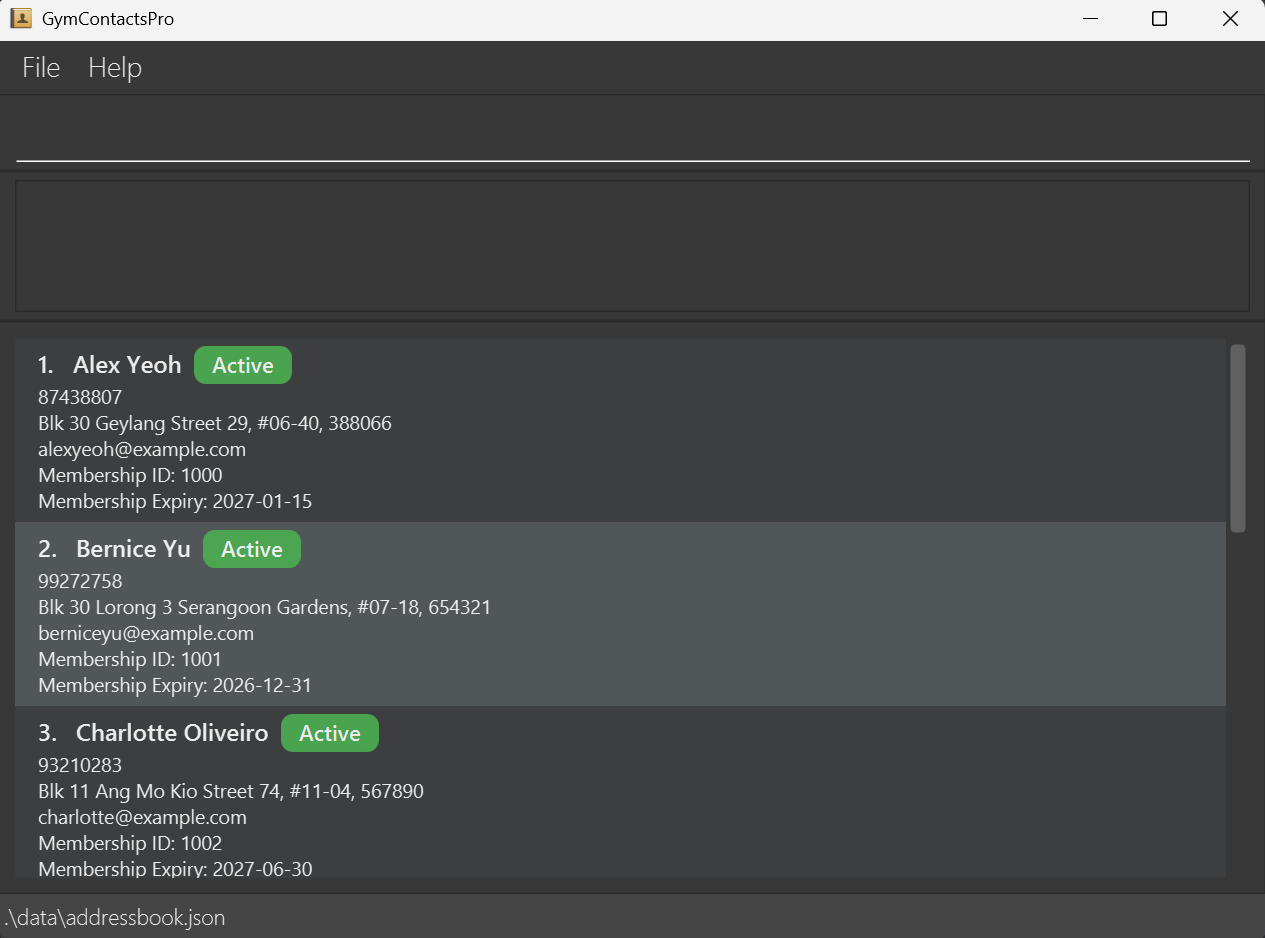
A GUI similar to the below should appear in a few seconds. Note how the app contains some sample data.
Alternatively you could simply double click GymContactsPro.jar file.Type the command in the command box and press Enter to execute it. e.g. typing
helpand pressing Enter will open the help window.
Some example commands you can try:list: Lists all contacts.add n/John Doe p/98765432 e/johnd@example.com a/John street, block 123, #01-01, 138601 m/2026-11-12: Adds a contact namedJohn Doeto the Address Book.delete 1006: Deletes the person with membership ID 1006 from the list.clear: Deletes all contacts.exit: Exits the app.
Refer to the Features below for details of each command.
Features
Before We Begin . . .
These are some notes about the command formats.
Notes here apply to all features introduced below (where applicable), and will not be repeated
Words in
UPPER_CASEare the parameters to be supplied by the user.
e.g. inadd n/NAME,NAMEis a parameter which can be used asadd n/John Doe.Items in square brackets are optional.
e.gn/NAME [p/PHONE]can be used asn/John Doe p/92214584or asn/John Doe.Parameters can be in any order.
e.g. if the command specifiesn/NAME p/PHONE,p/PHONE n/NAMEis also acceptable.Extraneous parameters for commands that do not take in parameters (such as
help,list,exitandclear) will be ignored.
e.g. if the command specifieshelp 123, it will be interpreted ashelp.If you are using a PDF version of this document, be careful when copying and pasting commands that span multiple lines as space characters surrounding line-breaks may be omitted when copied over to the application.
Adding a Member : add
Adds a new gym member to the list of registered gym members.
Format: add n/NAME p/PHONE_NUMBER e/EMAIL a/ADDRESS m/EXPIRY_DATE
Note:
- Pending edit
Tip:
- Fields following the
addcommand can be provided in any order
Example input:
add n/Alfred Goh p/88574393 a/Blk 886 Waterloo Street, #03-514, 736886 e/gohfred@gmail.com m/2028-01-01
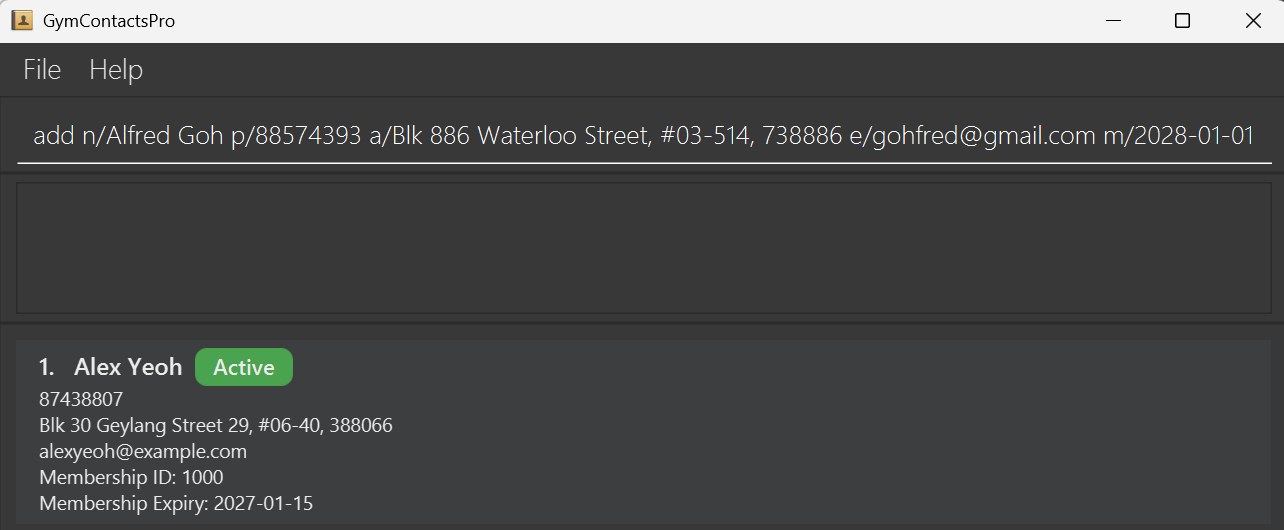
Example output:
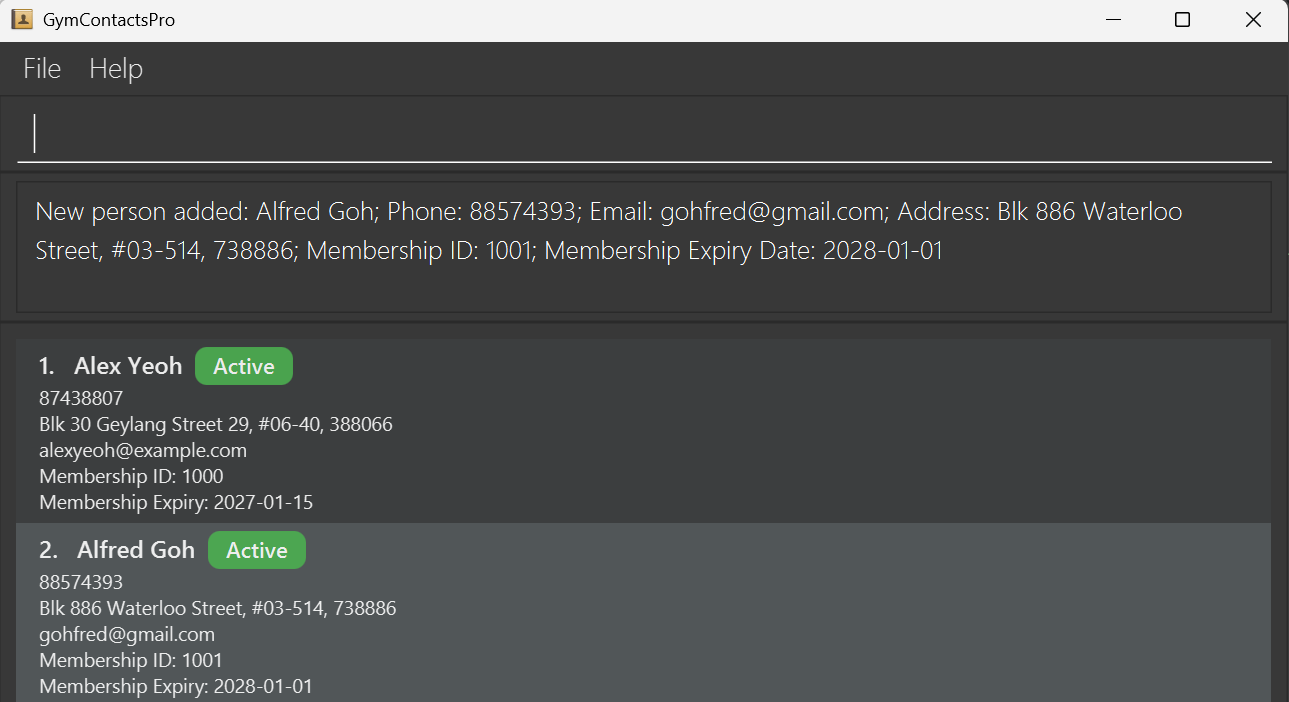
- Added
Alfred Gohwith his personal details to the list of registered gym members, together with aNew person added: ...success message.
Listing All Members : list
Displays the list of all registered gym members.
Format: list
Example input:
list
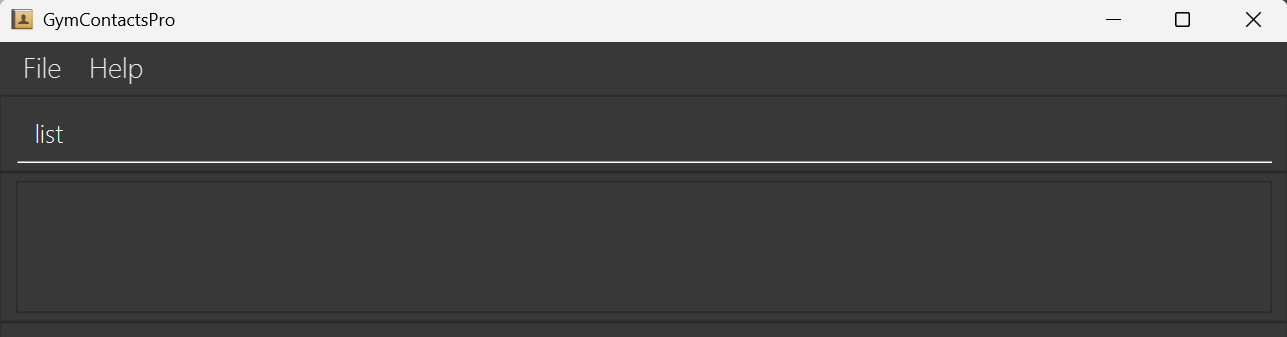
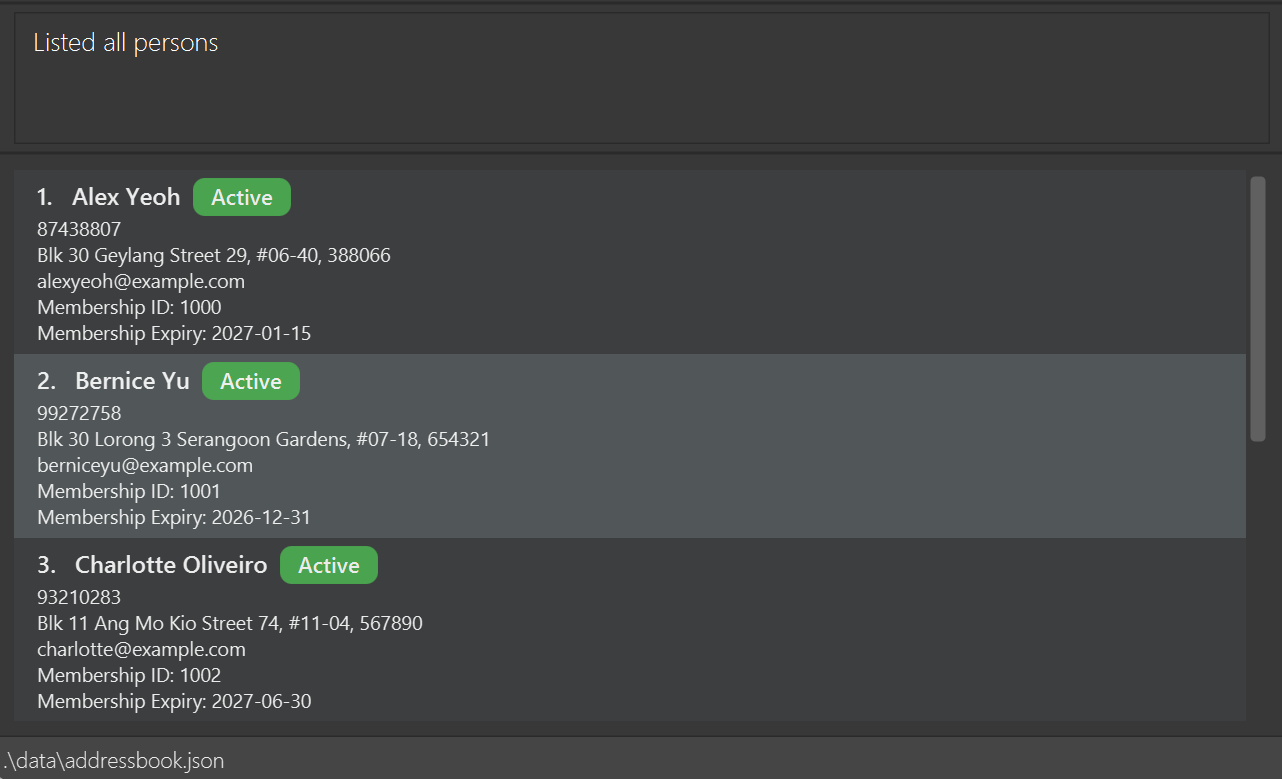
Example output:
- Displays the list of all registered gym members.
Deleting Member(s) : delete
Deletes the specified member(s) from the list of registered gym members.
Format: delete id/MEMBERSHIP_ID [MORE_MEMBERSHIP_IDS]
Note:
- Deletes the person with the specified
MEMBERSHIP_ID. - The MEMBERSHIP_ID refers to the Membership ID number shown in the displayed person list.
Tip:
- Pending edit
Example input:
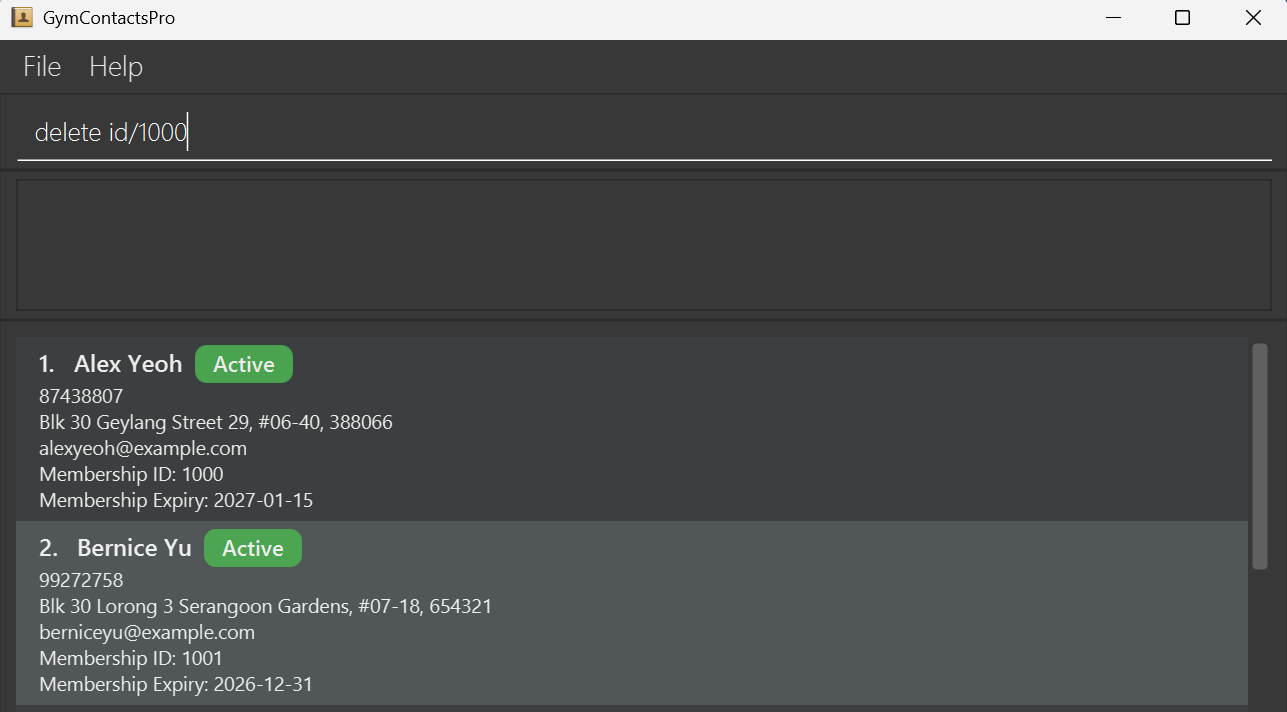
delete id/1000
Example output:
- Deleted the member with
MEMBERSHIP_IDof1000from the list of registered gym members, together with aDeleted Person: ...success message.
Editing a Member : edit
Edits an existing member among the registered gym members.
Format: edit MEMBERSHIP_ID [n/NAME] [p/PHONE] [e/EMAIL] [a/ADDRESS] [m/EXPIRY_DATE]
Note:
- Edits the person at the specified
MEMBERSHIP_ID. - At least one of the optional fields must be provided.
- Multiple fields can be provided at once. The order of the fields does not matter.
- Existing values will be updated to the input values.
Tip:
- Pending edit
Example input:
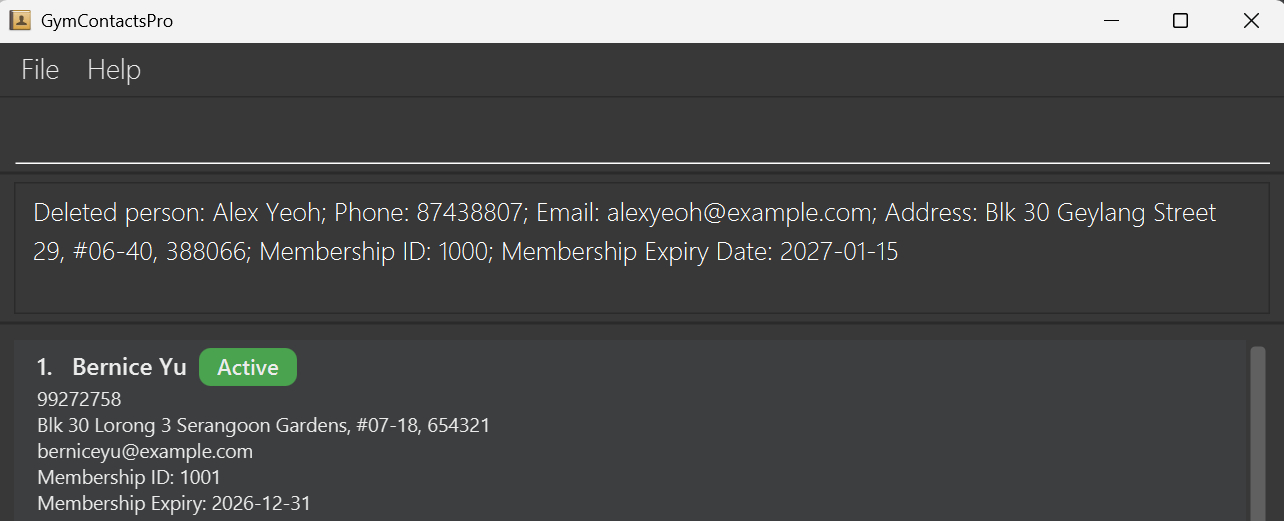
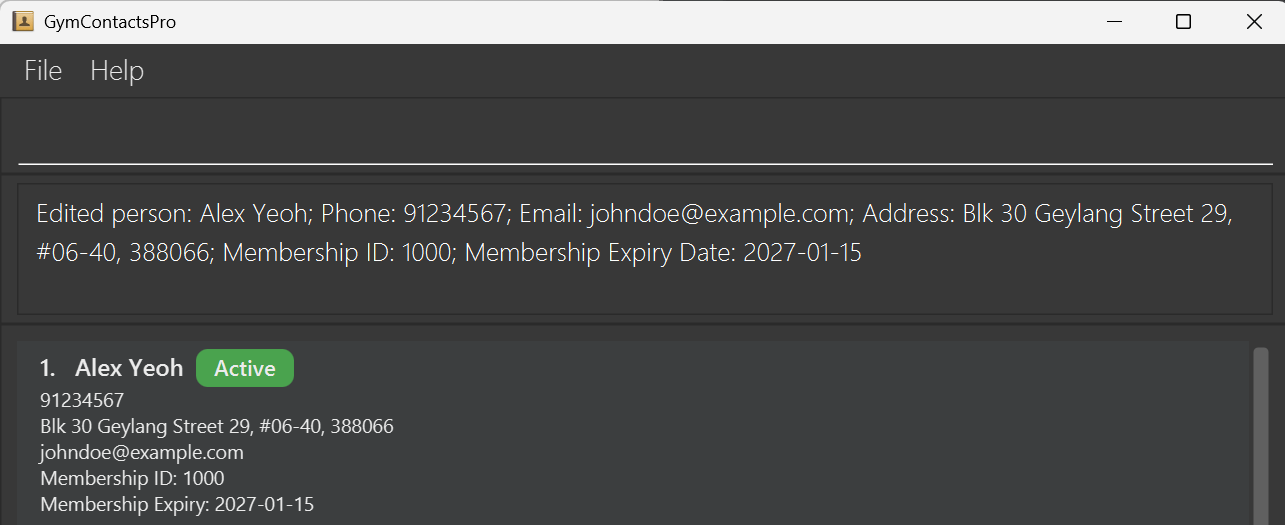
edit 1000 p/91234567 e/johndoe@example.com
Example output:
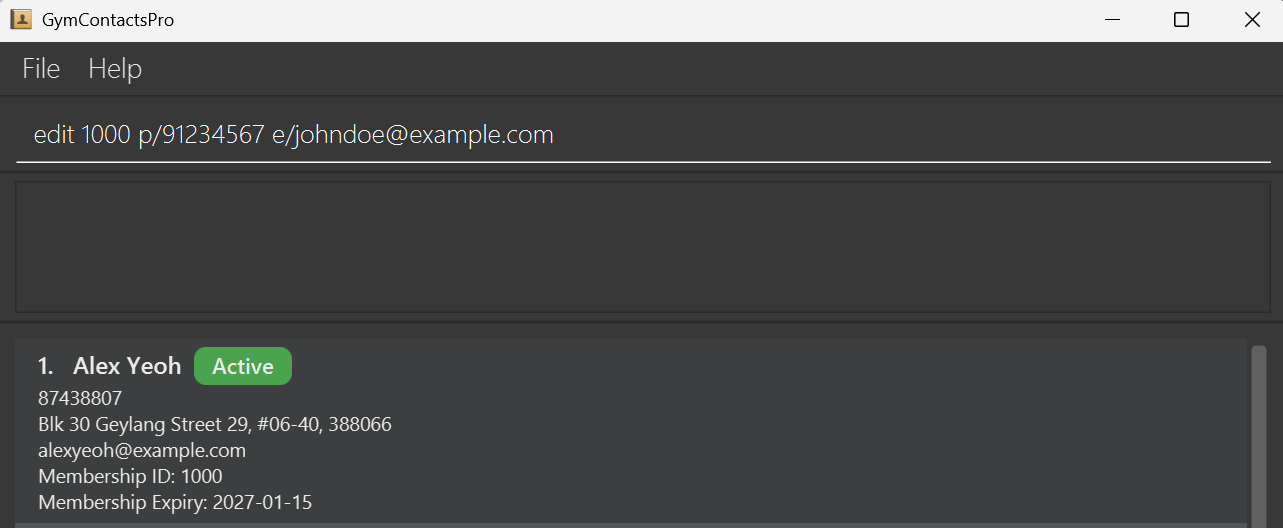
- Edited the
PHONEandEMAILof member withMEMBERSHIP_IDof1000, together with aEdited person: ...success message.
Finding Member(s) : find
Finds member(s) matching any of the given keywords.
Format: find PREFIX/KEYWORD [MORE_KEYWORDS]
Note:
- Only 1
PREFIXis allowed in the command- Prefix
id/finds by Membership ID. - Prefix
n/finds by Name. - Prefix
p/finds by Phone number. - Prefix
e/finds by Email. - Prefix
a/finds by Address (Postal Code). - Prefix
m/finds by Membership Expiry Date.
- Prefix
- At least 1
KEYWORDmust be provided.- Only full keywords will be matched
e.g.Berwill not matchBernice - Keywords are case-insensitive.
e.gbernicewill matchBERNICE
- Only full keywords will be matched
Tip:
- Finding by name doesn't require full names.
- Any keyword matching part of a member’s first or last name will return that member.
e.g.Bernicewill match and findBernice Yu
- Any keyword matching part of a member’s first or last name will return that member.
Example input:
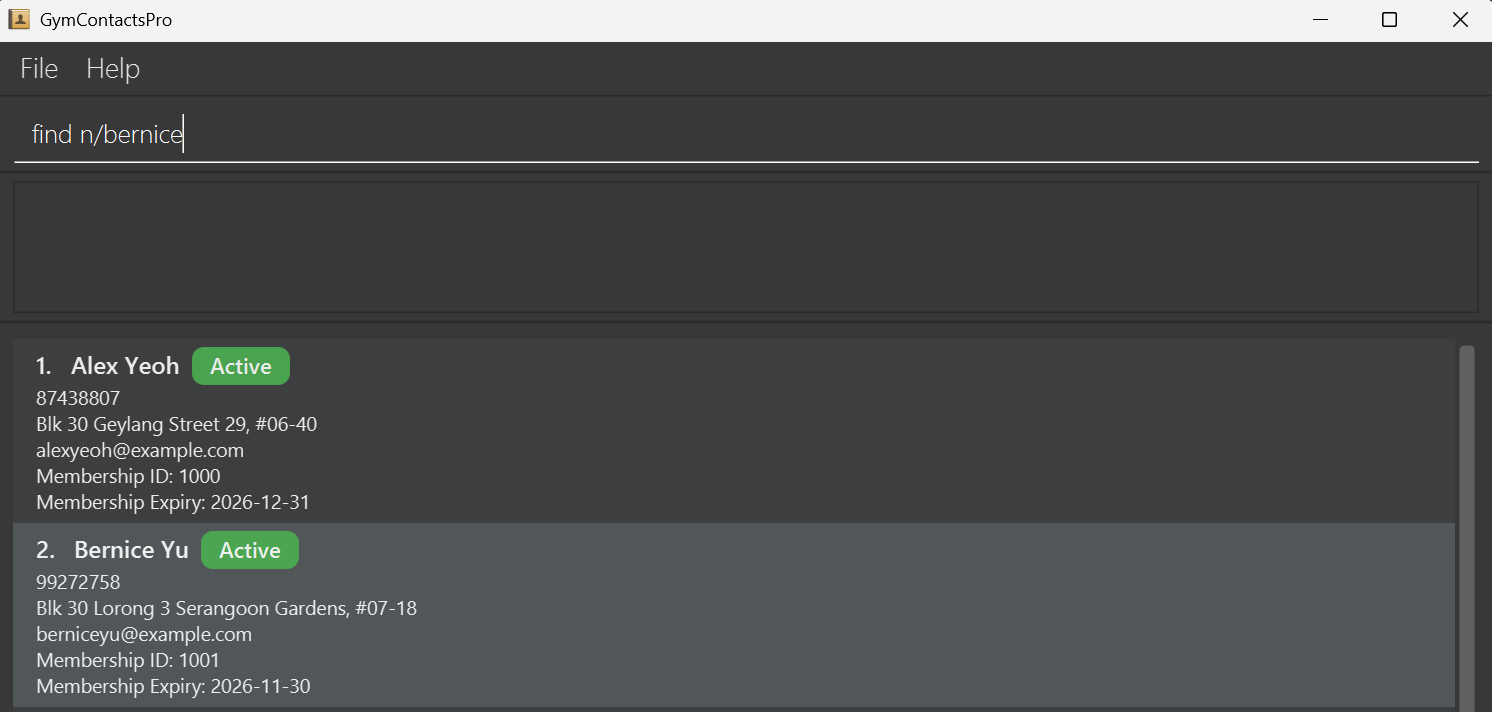
find n/bernice
Example output:
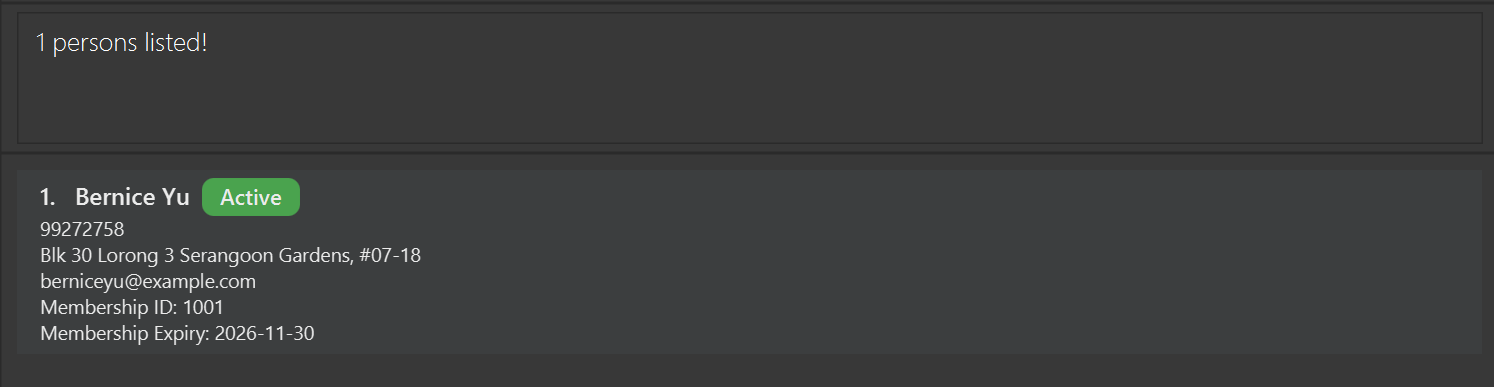
- Found
Bernice Yu, together with a(No. of) persons listedsuccess message.
Sorting Members : sort
Sorts the list of registered gym members by the specified order.
Format: sort PREFIX/ORDER OR sort none
Note:
- Only 1
PREFIXis allowed in the command- Prefix
id/sorts by Membership ID. - Prefix
n/sorts by Name. - Prefix
p/sorts by Phone number. - Prefix
e/sorts by Email. - Prefix
a/sorts by Address (Postal Code). - Prefix
m/sorts by Membership Expiry Date.
- Prefix
- Only 1
ORDERcan be provided
(unlesssort noneis used to disable sorting).- Order can be either
ascordescto sort members in ascending or descending order respectively. - Order is case-insensitive.
- Order can be either
Tip:
- Sorting order, regardless of whether it is
ascordesc, will be "turned on" and applied on displayed lists across all commands unless "turned off" bysort none.
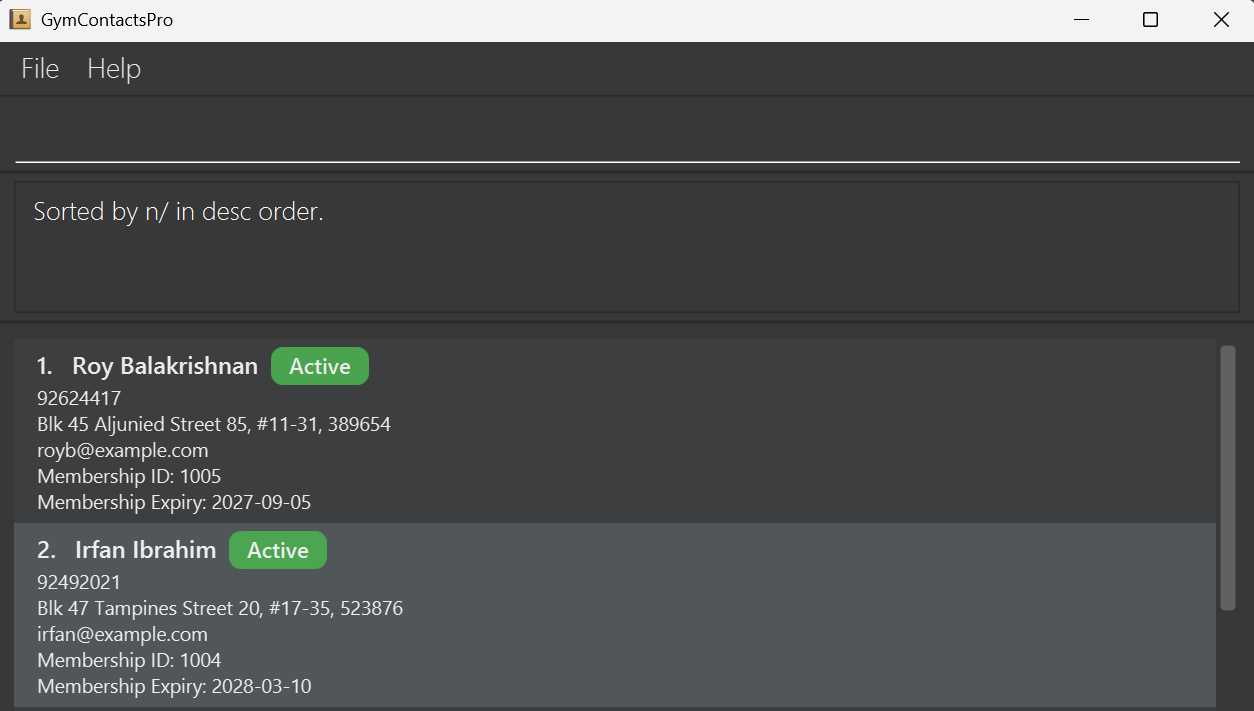
Example input:
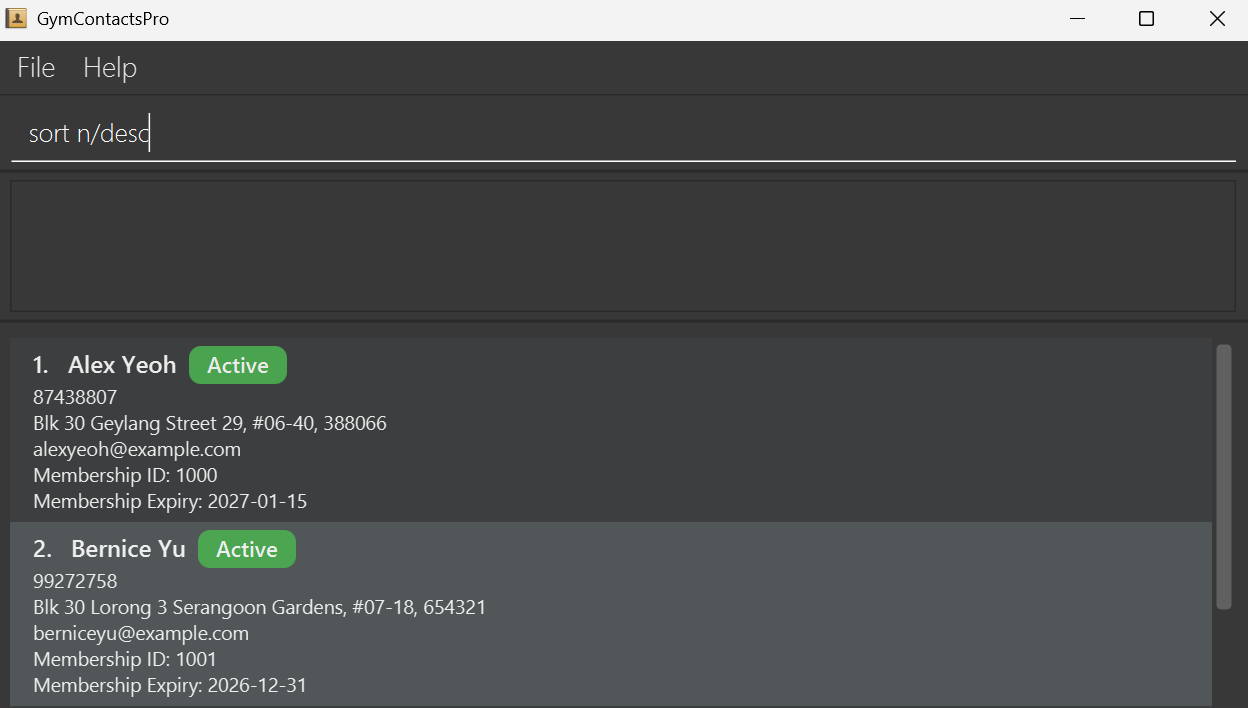
sort n/desc
Example output:
- Sorted
NAMEof members indescorder.
Clearing All Data : clear
Delete all registered gym members after confirmation.
Format: clear
Note:
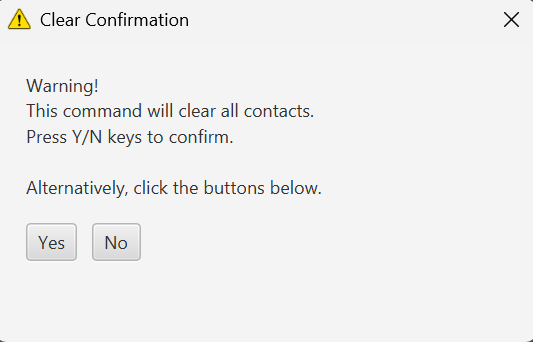
- A warning page will pop up to confirm the deletion of all data.
Tip:
- These are the possible ways to confirm the deletion of all data:
- Clicking the
Yesbutton. - Hitting the
Ykey.
- Clicking the
- These are the possible ways to cancel the deletion of all data:
- Clicking the
Nobutton. - Hitting the
Nkey.
- Clicking the
Example input:
clear
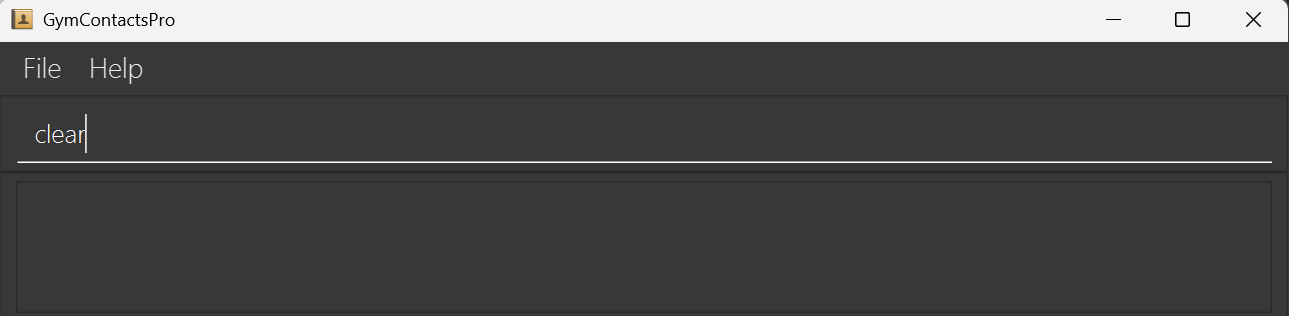
Example output:
- A warning window pops up to ask for confirmation.
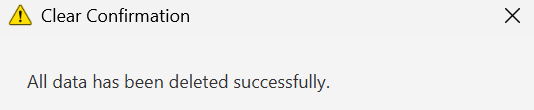
- After confirmation, all data will be deleted, together with a
All data has been deleted successfullysuccess message.
The warning window will close after a short delay.
Getting Help : help
Shows a help message.
Format: help
Note:
- Pending edit
Tip:
- Pending edit
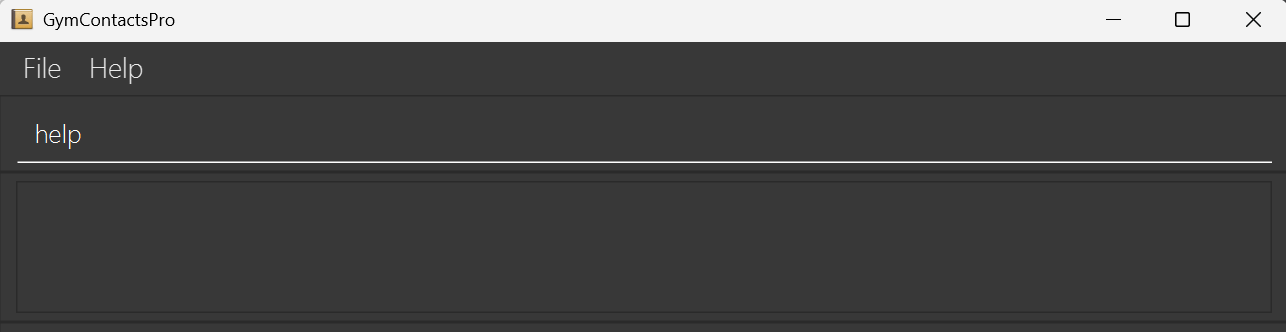
Example input:
help
Example output:
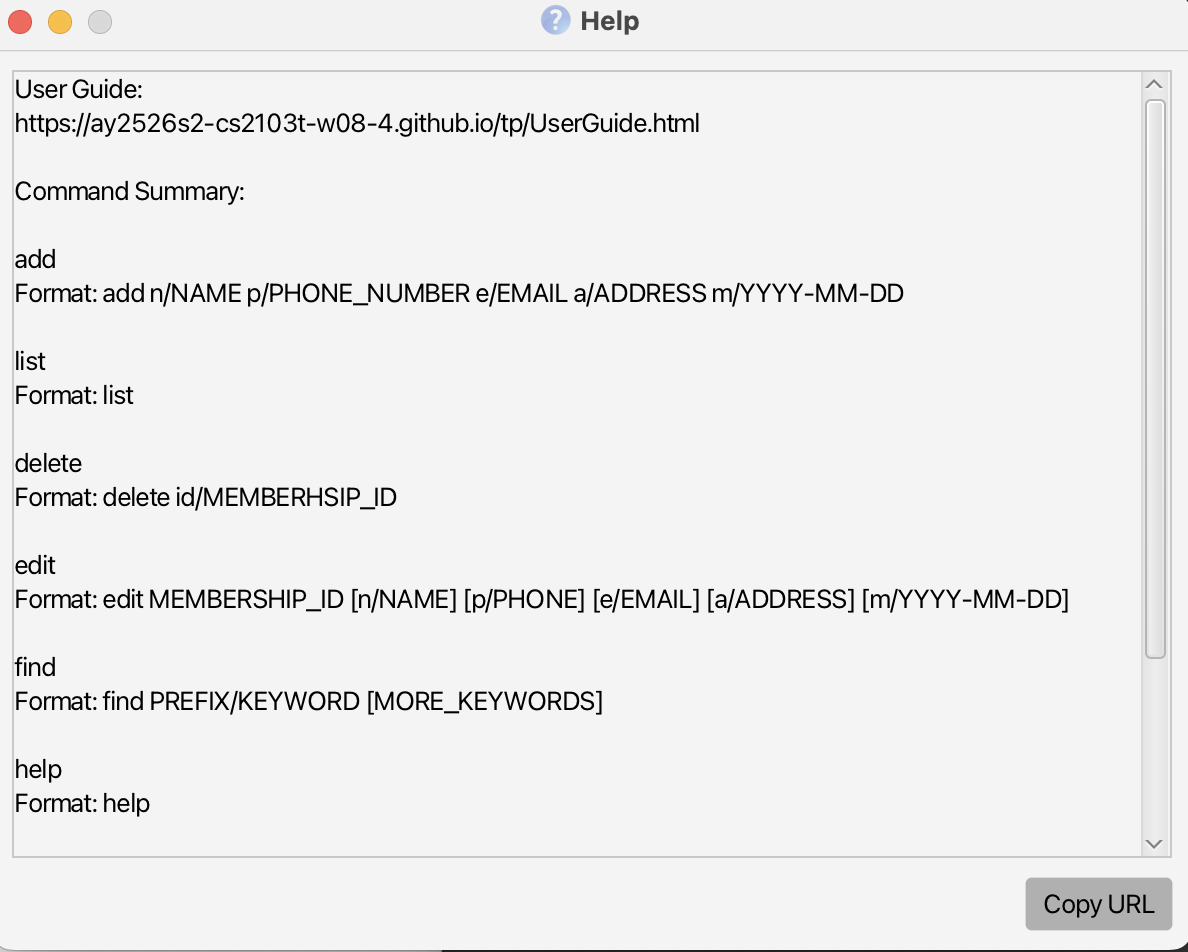
- A help window pops up with the User Guide URL and, a summary of executable commands.
Exiting the App : exit
Exits the app.
Format: exit
Tip:
- These are the alternative ways to exit the app:
- Clicking the
Exitbutton in theFilemenu. - Closing the app window directly by clicking the
Xbutton in the top right corner.
- Clicking the
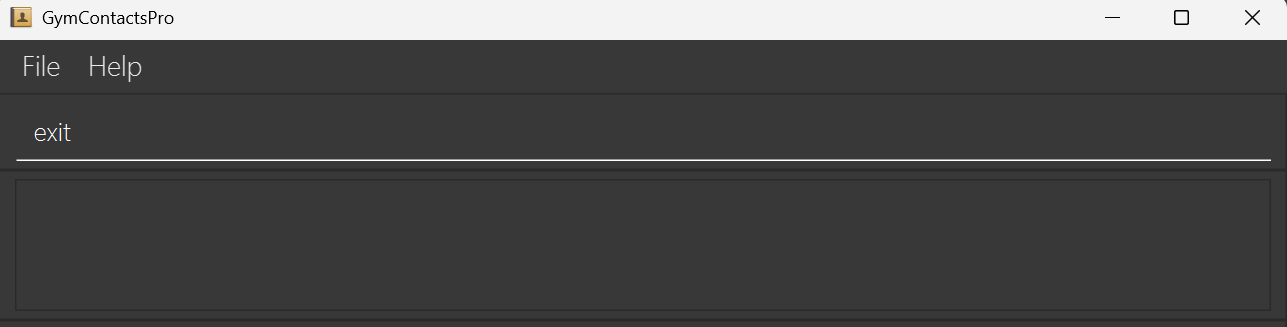
Example input:
exit
Example output:
- App window gradually disappears from view and the application exits.
Saving Data
Data of all members is saved in the computer's storage automatically after any command that changes member data. There is no need to save manually.
Note:
- Data is saved to
[JAR file location]/data/addressbook.json - Saving is typically very fast and completes within milliseconds.
Tip:
- It is recommended to regularly back up your
addressbook.jsonfile to a secure location.
FAQ
Q: How do I transfer my data to another computer?
A: Install the app in the other computer and overwrite the empty data file it creates with the file that contains the data of your previous AddressBook home folder.
Q: What happens if the application freezes or is forcibly closed?
A: If the application freezes (but is not forcefully closed), all your previous changes are safely saved. However, if the application is forcibly closed while saving data (e.g., force quit, system crash, power loss), the data file may become corrupted. In such cases, the application will start with empty member data on the next run. To prevent data loss, it is recommended to regularly back up your addressbook.json file.
Known Issues
- When using multiple screens, if you move the application to a secondary screen, and later switch to using only the primary screen, the GUI will open off-screen. The remedy is to delete the
preferences.jsonfile created by the application before running the application again. - If you minimize the Help Window and then run the
helpcommand (or use theHelpmenu, or the keyboard shortcutF1) again, the original Help Window will remain minimized, and no new Help Window will appear. The remedy is to manually restore the minimized Help Window.
Command Summary
| Action | Format, Examples |
|---|---|
| Add | add n/NAME p/PHONE e/EMAIL a/ADDRESS m/EXPIRY_DATEe.g., add n/James Ho p/92375927 e/jamesho@example.com a/Blk 123, Clementi Rd, 665123 m/2026-12-31 |
| List | list |
| Delete | delete id/MEMBERSHIP_IDe.g., delete id/1021 |
| Edit | edit id/MEMBERSHIP_ID [n/NAME] [p/PHONE] [e/EMAIL] [a/ADDRESS] [m/EXPIRY_DATE]e.g., edit 1016 n/James Lee e/jameslee@example.com |
| Find | find PREFIX/KEYWORD [MORE_KEYWORDS]e.g., find n/James Max |
| Sort | sort PREFIX/ORDER e.g., sort n/descor e.g., sort none |
| Clear | clear |
| Help | help |
| Exit | exit |